
How To Set Up A Circuit On Breadboard Using Arduino: A Comprehensive Engineering Guide
Setting up a circuit on a breadboard using Arduino involves prototyping electronic systems by connecting components without soldering, allowing for rapid iteration and testing. This method is fundamental for developing projects, enabling engineers and hobbyists to validate designs before permanent integration, ensuring functional integrity and systematic problem-solving.
The Foundational Principles of Arduino Breadboard Prototyping
Many individuals embarking on electronics projects encounter frustrations such as intermittent connections, mysterious power failures, or even damaged components when attempting to build circuits. The common pitfalls often stem from a lack of systematic methodology in wiring and an incomplete understanding of breadboard mechanics. Ad-hoc wiring practices frequently lead to unreliable prototypes that exhibit erratic behavior or fail entirely under routine operation, consuming valuable development time and hindering project progress. This comprehensive guide, however, offers a structured, authoritative approach to how to set up a circuit on breadboard using Arduino. It emphasizes precise connections, logical current flow, and rigorous verification, ensuring the creation of stable, reliable, and durable prototypes that align with professional engineering standards.
Beyond merely achieving a functional circuit, the focus shifts towards long-term reliability and design robustness. While quick-fix solutions might offer temporary satisfaction, a meticulously wired breadboard circuit serves as a dependable testbed for design iteration and validation. This methodical approach not only mitigates immediate operational issues but also cultivates best practices essential for transitioning from prototype to production. Understanding the inherent value of a well-constructed breadboard circuit extends its utility beyond initial testing, framing it as an integral part of the development lifecycle, capable of withstanding prolonged experimentation and refinement.
Adhering to established industry best practices is paramount when constructing any electronic circuit, even at the prototyping stage. The methodologies outlined herein are validated against market standards for robust electrical engineering practices. By following these guidelines, practitioners can ensure their Arduino breadboard circuits not only function as intended but also maintain a level of integrity and safety expected in professional environments. This authoritative perspective aims to elevate the user's understanding from mere assembly to informed engineering, equipping them with the knowledge to build reliable and efficient electronic systems.
Core Components for Breadboard Circuit Setup
To effectively understand how to set up a circuit on breadboard using Arduino, a specific set of foundational components is required. These items form the backbone of most beginner and intermediate Arduino projects, facilitating clear demonstrations of electronic principles.
- Arduino Microcontroller Board: Typically an Arduino Uno, serving as the programmable brain of the circuit.
- Solderless Breadboard: A prototyping board with interconnected holes for temporary component connections.
- Jumper Wires: Essential for connecting components on the breadboard and to the Arduino board.
- LED (Light Emitting Diode): A common output component for visual feedback.
- Current-Limiting Resistor: Crucial for protecting the LED from excessive current.
- USB Cable: For powering the Arduino and uploading code.
- Optional: Pushbutton: To demonstrate input capabilities and interactive circuits.
- Optional: 10k Ohm Resistor: For pull-up/pull-down configuration with the pushbutton.
Step-by-Step Wiring Flow: Building a Basic LED Circuit
This section details the systematic procedure for how to set up a circuit on breadboard using Arduino, specifically focusing on illuminating an LED, a fundamental exercise in electronics. The process is outlined from power source to ground, ensuring a logical and stable configuration.
Initial Setup and Power Distribution
Begin by placing the breadboard in a stable position. Connect the Arduino Uno to a computer via the USB cable. This provides both power and a communication link. Identify the 5V and GND pins on the Arduino board. These pins will supply power to the breadboard.
Utilize jumper wires to extend power to the breadboard's power rails. Connect a red jumper wire from the Arduino's 5V pin to the positive (+) power rail (typically marked red) on one side of the breadboard. Concurrently, connect a black jumper wire from the Arduino's GND pin to the negative (-) power rail (typically marked blue or black) on the same side of the breadboard. This establishes the primary power distribution, making 5V and ground readily available across the breadboard.
Component Placement: LED and Resistor
An LED, being a diode, is polarity-sensitive. The longer leg is the anode (positive), and the shorter leg is the cathode (negative). Insert the LED into the breadboard such that its two legs are in different rows, allowing for independent connections.
Crucially, an LED requires a current-limiting resistor to prevent damage from excessive current. For a standard 5mm LED powered by 5V, a 220 Ohm resistor is a common choice. Connect one end of the resistor to the same row as the LED's anode (longer leg). Connect the other end of the resistor to a new, empty row on the breadboard. This places the resistor in series with the LED.
Connecting to Arduino Digital Pin
Select a digital output pin on the Arduino, for instance, Digital Pin 13, which often has an onboard LED for quick verification. Connect a jumper wire from the row where the resistor's second end is placed to Arduino Digital Pin 13. This establishes the control signal path from the Arduino to the resistor-LED combination.
Completing the Circuit: Ground Connection
To complete the circuit and allow current to flow, the cathode (shorter leg) of the LED must be connected to ground. Use a jumper wire to connect the row containing the LED's cathode to the negative (-) power rail on the breadboard, which is already connected to the Arduino's GND. This closes the circuit, allowing current to flow from the Arduino's 5V (indirectly through the digital pin when HIGH) through the resistor and LED, and back to the Arduino's ground.
Code Upload and Verification
Open the Arduino IDE. Write a simple sketch to make Digital Pin 13 HIGH, then LOW, with a delay in between (e.g., the "Blink" example). Upload this code to the Arduino board. Observe the LED; it should blink according to the code, confirming successful circuit setup. This systematic approach ensures each segment of how to set up a circuit on breadboard using Arduino is correctly established before moving to the next.
Troubleshooting and Usage Guide for Breadboard Circuits
Even with meticulous attention to detail, issues can arise when constructing breadboard circuits. A systematic troubleshooting approach is critical for resolving these challenges and maintaining the reliability of your prototypes. Understanding common symptoms and their underlying causes significantly enhances the efficiency of debugging.
Symptom 1: No Power to Components or Intermittent Operation
When components, such as an LED, fail to illuminate or exhibit erratic behavior, the primary suspect is often the power supply or ground connections.
- Agitation: Many users find themselves endlessly re-plugging wires, leading to frustration and potential damage to components due to uncontrolled short circuits or reversed polarity. The lack of a systematic diagnostic often causes more issues than it resolves.
- Solution:
- Verify Power Rails: Use a multimeter to check for 5V between the positive and negative power rails on the breadboard. Ensure a stable 5V is present. If not, inspect the jumper wires connecting the Arduino's 5V and GND pins to the breadboard power rails.
- Check Individual Component Power: Trace the 5V and GND connections to the specific component. Ensure that the positive terminal of the component is indeed receiving 5V relative to the negative terminal being at ground.

Is My Breadboard Arduino Set Up Correctly General Guidance 
Make Your Own Arduino On Breadboard Uge Electronics Egypt 
Day 1 Lesson 03 Breadboard A Circuit Maker Hacks 
Breadboard Arduino Lesson 0 Getting Started Adafruit Learning System 
Circuit Works On Breadboard Kills Every Arduino Pro Mini When Wired 
Make Your Own Arduino On Breadboard Uge Electronics Egypt 
How To Use A Breadboard For Beginners Wiring Circuit Arduino 
How To Set Up An Arduino On A Breadboard Haljia 
Overview Arduino Lesson 2 Leds Adafruit Learning System 
How To Build An Arduino On A Breadboard Technetron Electronics 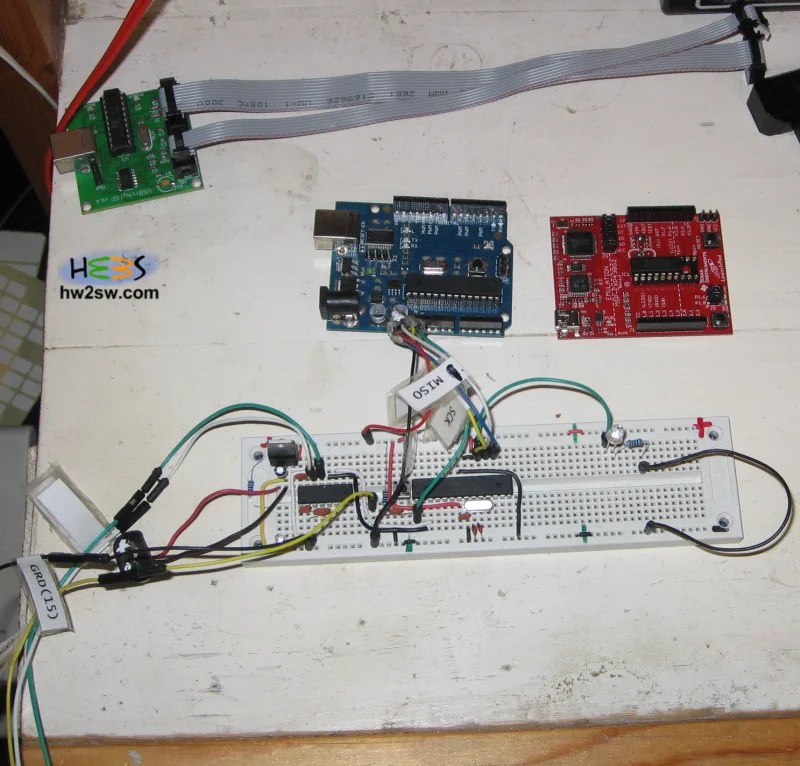
Constructing An Arduino On A Breadboard Hardware To Software 
How To Build An Arduino On A Breadboard Technetron Electronics 
Circuit Diagram To Breadboard Building A On 
Breadboard Diy At George Farrow Blog 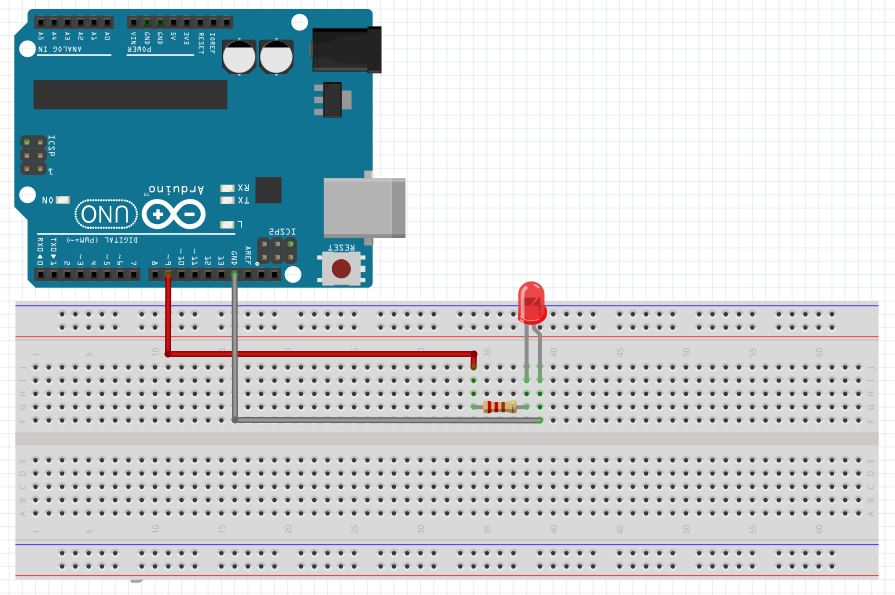
Arduino Lesson 2 Using A Breadboard Technology Tutorials 
Arduino Tutorial Lesson 3 Breadboards And Leds 
How To Install A Breadboard Arduino Wikimultifiles 
Arduino On Breadboard Circuit Next Electronics 
Solved 1 Set Up The Following Circuit With Your Breadboard Chegg Com
